
Import data
Import SOS requests, reports, troops, building levels and outgoing commands from the game.
#Choose the right input
In staemmeDB, open “Data → Insert” and check the selected world and game account. If you are sitting another account, also check the account you represent. Each type of data has its own input field.
- In the game, open the relevant overview or the report you want to import.
- For reports, use bulk forwarding from the report list. For troops and buildings, copy the whole overview page with Ctrl+A and Ctrl+C.
- Switch to staemmeDB and paste the copy into the matching field with Ctrl+V or ⌘V.
- Processing starts automatically after pasting. Read the status and result before submitting the same data again.
- Check the result in the relevant overview. The public demo does not save data.
#SOS requests
Copy the complete SOS request, including targets, origins, players and arrival times. Paste it into the SOS field and wait for the result, which tells you how many incoming attacks were imported.
#Reports
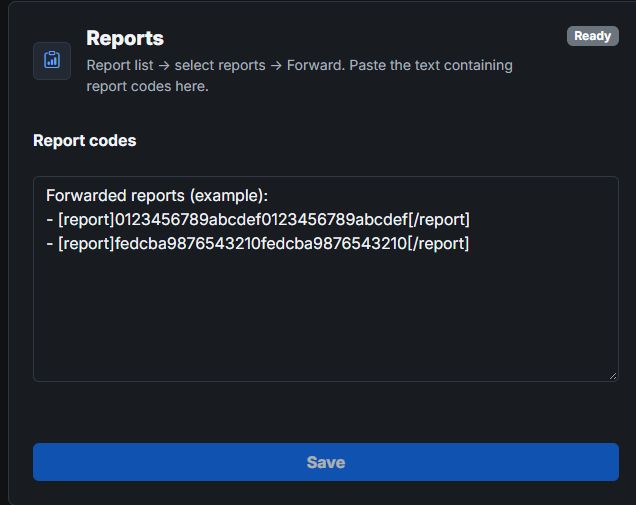
Open the report list in the game. Select the reports using their checkboxes or “Select all”, then use “Forward” below the list. This is the bulk-forwarding route for multiple reports.
The message draft opened afterwards contains the report codes as [report]…[/report]. Copy this text for staemmeDB. You do not need to enter a recipient or send a message.
- Open the report list in the game.
- Select the reports you want or choose “Select all” for the current page.
- Click “Forward” below the list.
- If an overview of published reports appears first, choose “Forward” again on that page.
- Click inside the message draft text box. Select all of its text with Ctrl+A and copy it with Ctrl+C. You may include the heading and bullet points.
- Switch to staemmeDB, check the world and game account, then open “Data → Insert”. Paste the copied text into “Reports → Report codes”.
- Wait for the result and check the imported reports in the report overview.

#Multiple reports
Bulk forwarding creates one text containing several report codes. Paste the whole text into the report field at once. “Select all” applies to the report page currently shown; repeat the process for additional pages. Not every event or system notification is a supported battle report. Read the result to see which reports were actually imported.
Forwarded reports (example):
- [report]0123456789abcdef0123456789abcdef[/report]
- [report]fedcba9876543210fedcba9876543210[/report]#Troops
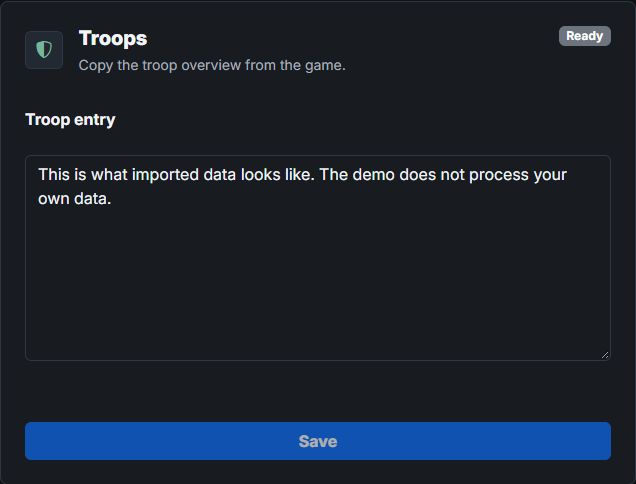
Open the troop overview in the game and select “All”. Then copy the whole game page with Ctrl+A and Ctrl+C, rather than selecting individual troop numbers or a single village row.
- Open the troop overview, choose the village group you want and select the “All” view.
- Click the normal page content so that no search or input field has focus.
- Press Ctrl+A, then Ctrl+C to copy the entire displayed page, including headings and every village block.
- In staemmeDB, open “Data → Insert” and check the world and game account.
- Paste with Ctrl+V into “Troops → Troop entry”. Wait for the result, then check the village count and troops in “Villages”.

#Buildings
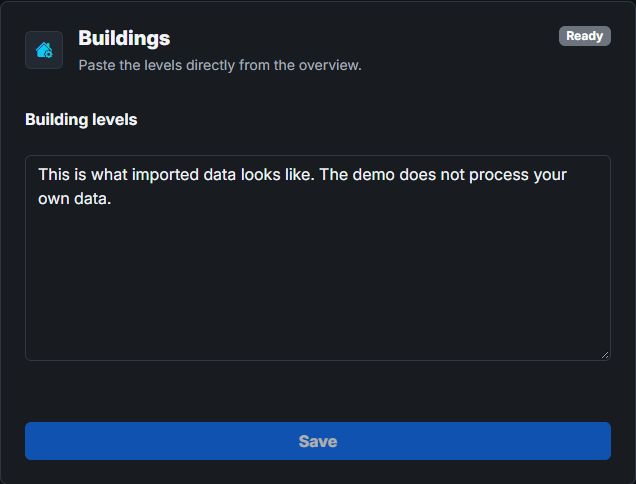
Open the building overview in the game. Copy the whole game page with Ctrl+A and Ctrl+C here as well. The overview contains your villages’ building levels; the construction cost list in the headquarters is not the right source.
- Open the building overview and choose the village group you want.
- Click the normal page content.
- Press Ctrl+A, then Ctrl+C to copy the entire displayed page.
- In staemmeDB, open “Data → Insert”, check the world and game account, then paste with Ctrl+V into “Buildings → Building levels”.
- Wait for the result and check the number of imported villages and their building levels in “Villages”.

#Outgoing attacks
Copy the command overview, including origins, targets, units and times. These details help with timing and planning. Commands that are already known may be identified as duplicates.
#Processing status
The status tells you whether the input is ready, queued, being processed or complete. During longer imports, the page updates the progress automatically.
#Automatic retry
If a report is temporarily unavailable, staemmeDB may try again later. While a retry is still in progress, you do not need to submit the same report again.
#Partially processed input
If an SOS request is incomplete, the incoming attacks that can be recognised are still imported. The result explains what is missing. Add the missing details and check the attack list afterwards.
#Fix errors
The result explains what went wrong. Part of the copy may be missing, the link may not be public or the report may belong to another world. Copy the complete source again and retry.
#Check the import
When processing finishes, the result tells you how many records were imported. Open the report, attack or troop overview and check that the data matches what you copied.